


소개
Google AI Studio에서 PRD 하나로 실시간 영상 분석 앱을 만들고 배포까지 해봤습니다.
요즘 Gemini의 멀티모달 기능이 좋아졌다는 얘기를 듣고, 영상을 촬영하면 AI가 상황을 설명해주는 앱을 만들어보고 싶었습니다. 시각장애인 보조 도구나 의료 관찰 용도로도 활용 가능할 것 같았고, 무엇보다 "PRD만 잘 쓰면 코드 생성부터 배포까지 얼마나 빠르게 되는지" 테스트해보고 싶었습니다.
진행 방법
사용 도구
Google AI Studio (Gemini 3 Pro Preview로 코드 생성)
Gemini 2.0 Flash API (영상 분석용)
Google Cloud Run (원클릭 배포)
Step 1: PRD 작성
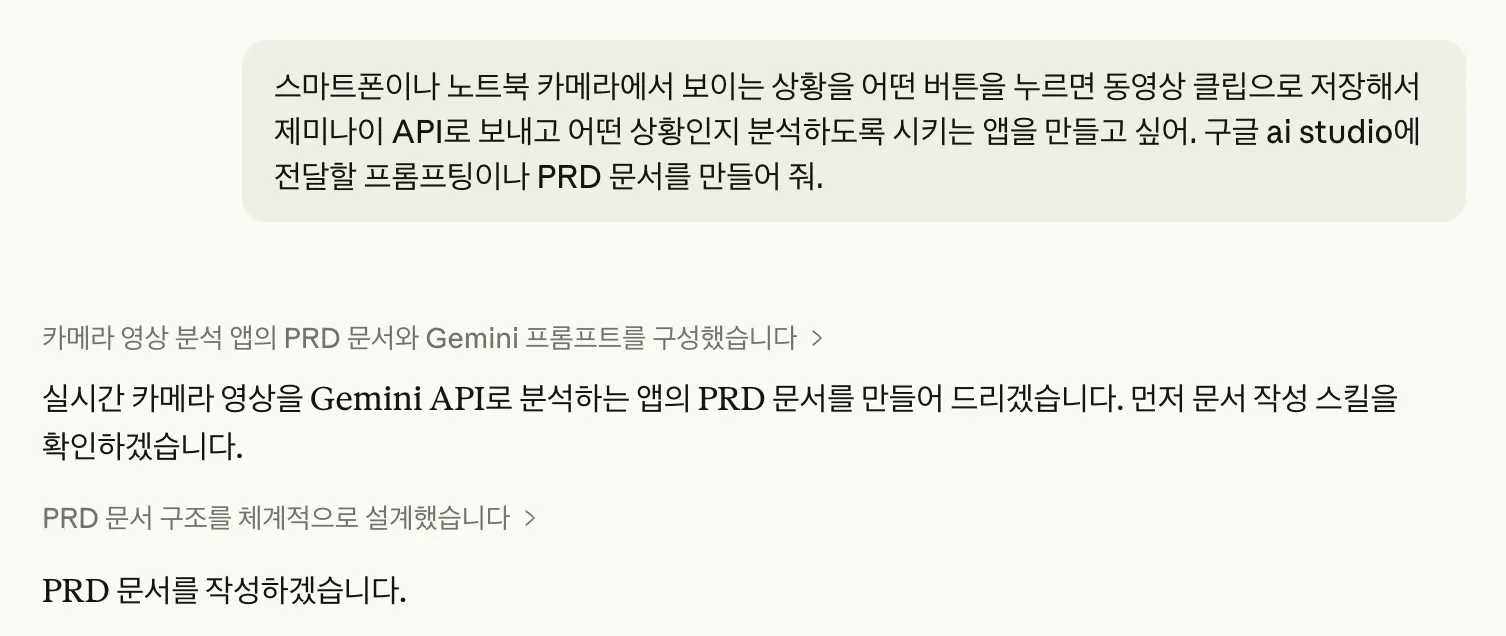
먼저 클로드로 딸깍, 앱의 기능과 프롬프트를 정의한 PRD 문서를 작성했습니다.
시스템 프롬프트 (공통)
You are Vision Analyzer, an AI assistant specialized in analyzing video content.
Your role is to provide clear, accurate, and helpful descriptions of what you
observe in video clips.

Guidelines:
- Describe scenes objectively and comprehensively
- Identify objects, people (without identifying individuals), actions, and environments
- Note temporal changes and movement patterns
- Highlight anything unusual or potentially important
- Respond in the user's preferred language (default: Korean)
- Be concise but thorough
- If something is unclear, mention the uncertainty rather than guessing
일반 분석 모드 프롬프트
Analyze this video and describe:

1. **Scene Overview**: What is the overall setting and context?
2. **Objects & People**: What objects and people are visible? Describe their
   appearance and positions.
3. **Actions & Events**: What activities or events are occurring?
4. **Notable Details**: Any interesting or unusual elements?
5. **Timeline**: How does the scene change over time?

Respond in Korean. Be descriptive but concise.
접근성 모드 프롬프트 (시각장애인용)
Provide a detailed audio description suitable for someone who cannot see:

1. **Spatial Layout**: Describe the environment's layout, dimensions, and obstacles
2. **Navigation Cues**: Important landmarks, pathways, doors, stairs
3. **People Present**: How many people, their general positions and activities
4. **Potential Hazards**: Obstacles, uneven surfaces, moving objects
5. **Ambient Information**: Sounds that might be relevant, lighting conditions
6. **Text & Signs**: Read aloud any important text or signage

Speak naturally as if describing to a friend. Use clock positions for directions
(e.g., "door at 2 o'clock").

Respond in Korean in a conversational, clear manner.
Step 2: AI Studio에서 코드 생성
PRD를 AI Studio에 넣고 Gemini 3 Pro Preview에게 React 앱 생성을 요청했습니다. 약 24초 만에 10개 파일(index.tsx, App.tsx, components 등)을 생성해줬습니다.
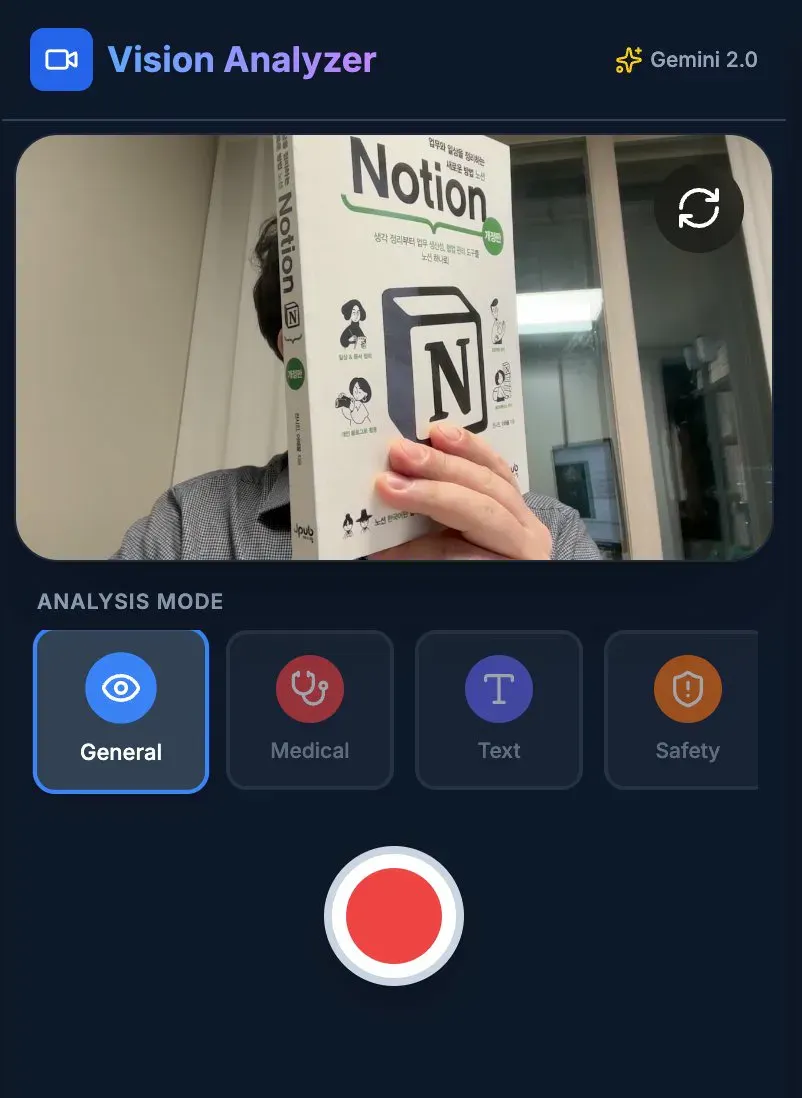
완성된 앱 UI - 카메라 프리뷰 + 분석 모드 선택 + 녹화 버튼
Step 3: 피드백으로 수정
초기 버전에서 녹화 버튼이 카메라 화면을 가리는 문제가 있었는데, "녹화 버튼 위치가 화면을 가리고 있어서 좀 안좋네, 하단으로 내려줘" 한 마디로 레이아웃이 분리형으로 재구성됐습니다.
Step 4: 테스트 및 배포
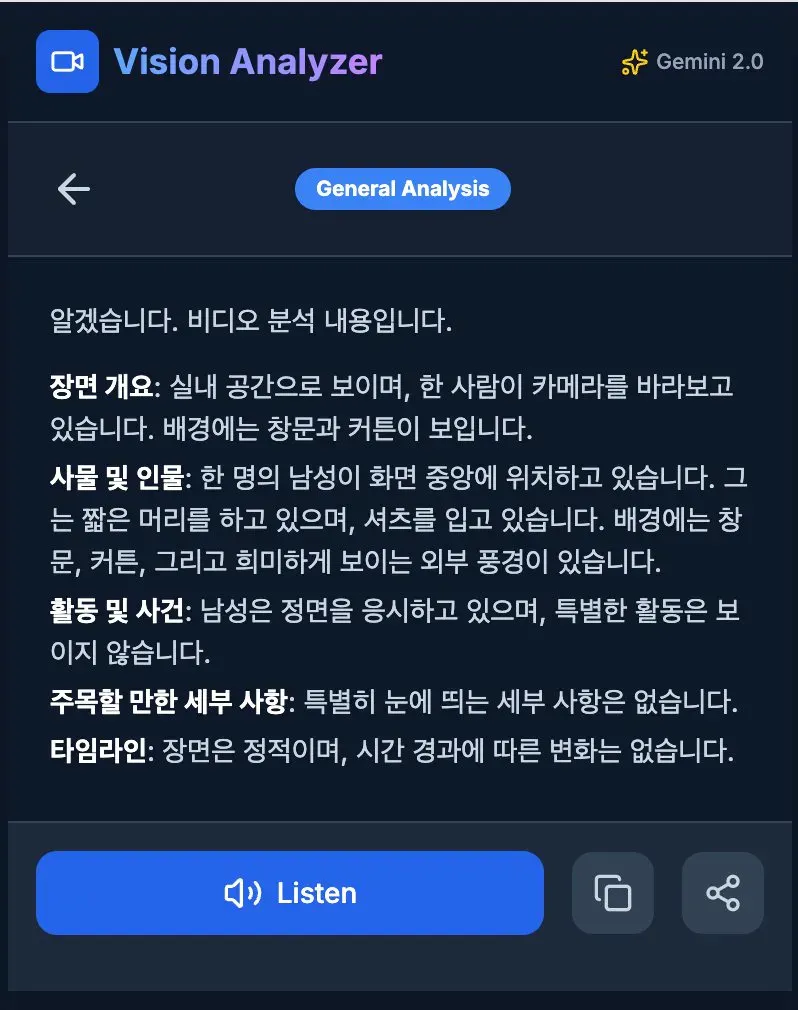
- 구조화된 형태로 잘 나옴
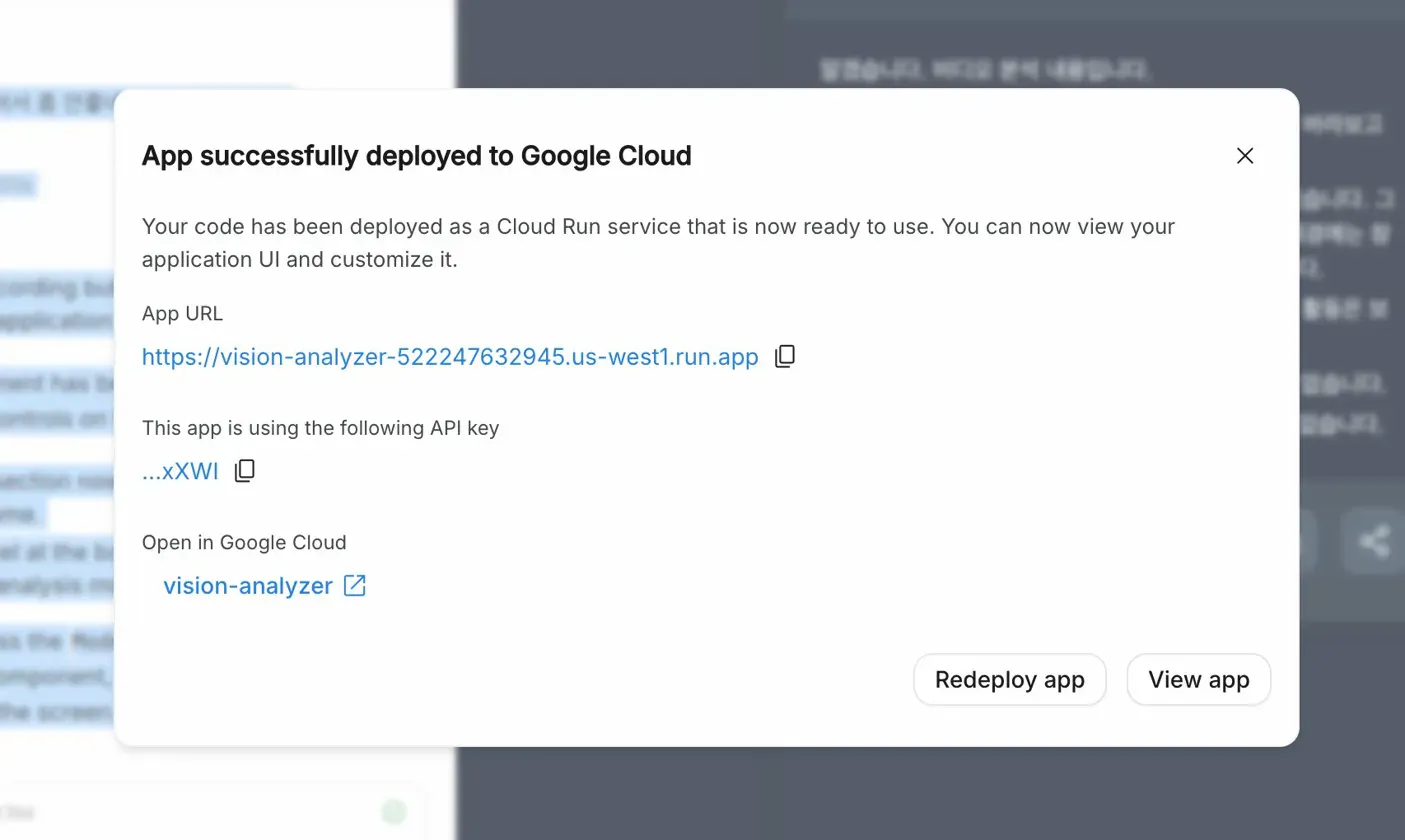
Google Cloud에 배포된 앱의 스크린샷
배포도 귀찮아서 그냥 디플로이 눌렀습니다.
Cloud Run으로 원클릭 배포 - 바로 사용 가능한 URL 생성
결과와 배운 점
배운 점 & 꿀팁
PRD가 곧 프롬프트다: 기능 명세를 상세하게 쓸수록 생성되는 코드 품질이 좋아집니다. 특히 프롬프트를 PRD에 미리 설계해두면 API 연동 코드까지 한 번에 나옵니다.
모드별 프롬프트 분리: 같은 영상이라도 "일반 분석"과 "시각장애인용 설명"은 완전히 다른 출력이 필요합니다. 용도별 프롬프트를 미리 설계해두는 게 핵심이었습니다.
자연어 피드백이 통한다: "하단으로 내려줘" 같은 간단한 피드백으로도 레이아웃 전체를 재구성해줍니다.
시행착오
처음에 녹화 버튼을 카메라 화면 위에 오버레이로 배치했는데 UX가 안 좋았음 → 분리형 레이아웃으로 변경
영상 분석 응답이 너무 길어질 수 있어서 프롬프트에 "Be concise but thorough" 추가
앞으로의 계획
실시간 스트리밍 분석 기능 추가 (현재는 녹화 후 분석)
커스텀 프롬프트 입력 기능
분석 히스토리 저장/검색 기능
도움 받은 글
Google AI Studio 공식 문서
Gemini API 비디오 분석 가이드
