


소개
지금 쓰고 있는 플래너가 기능은 좋으나, 디자인이 마음에 들지 않고, 자꾸 성가신 광고를 봐야 해서 나만의 플래너 앱을 만들어봤습니다.
진행 방법
디자인은 Google stitch로 했습니다. 요구사항이 조금 많아서 프롬프트는 길게 썼습니다.
Design a feminine, lovely planner app. - Layout Primary view: Monthly calendar grid Top: Tab component with two tabs — “Personal” and “Business.” Below: tab bar for navigation; single-column calendar. - Style Aesthetic: Soft, feminine, lovely. Palette: Pastels (blush pink, lavender, soft blue, mint); ample white space. UI: Rounded corners (12–16px), subtle shadows, 8px spacing grid. Type: Friendly humanist sans for UI, elegant serif for headings. Components Tabs: “Personal” | “Business” with active/hover/disabled states. Calendar cell: Date, multiple event chips, overflow “+N.” Event chip: Pill shape, color-filled, icon + title, truncation. Event modal: Title, date/time, tab (scope), color picker (user-selected color), notes, Save/Cancel. Color picker: Presets + custom input. Filters: By color and scope (personal/business). Empty states: No events (illustration + CTA). Interactions & States Hover/pressed/focus for tabs, chips, buttons. Drag to create event on calendar. Keyboard focus rings for accessibility. Error/validation states in modal. Variants & Frames Provide Desktop (1440×1024) and Mobile (390×844). Light theme default; include quick dark-theme swatch. Deliverables Auto-layout throughout. Reusable components with variants (Tabs, Calendar Cell, Event Chip, Modal, Buttons). Color & type tokens, spacing scale, and icon set.이런 디자인이 나왔습니다. 마음에 들지만 하단의 today's highlight와 통계 메뉴가 필요하지 않아 Refine 했습니다.
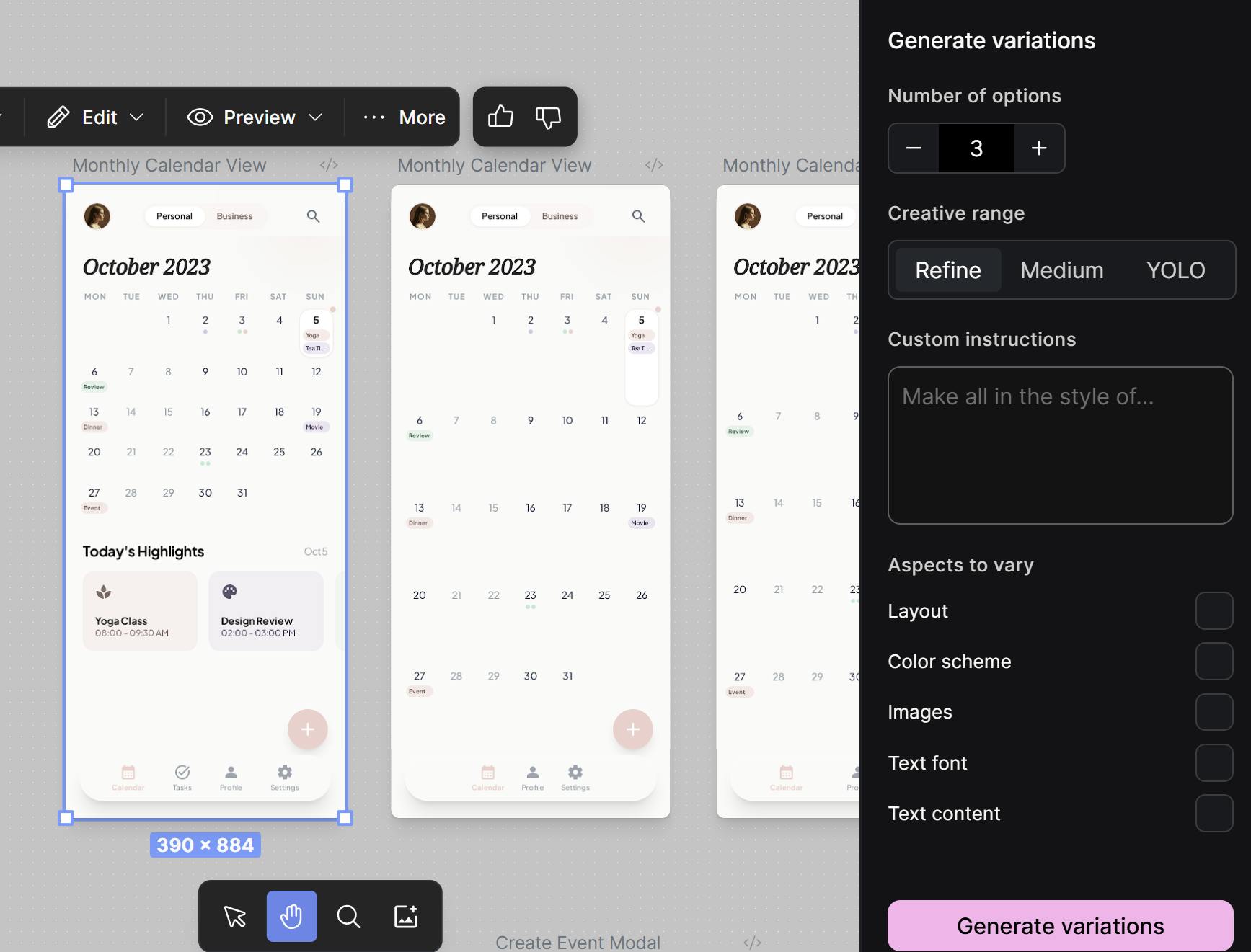
다른 보기가 표시된 캘린더 앱의 스크린샷
최종 디자인입니다. 화면 하나만 디자인했습니다.
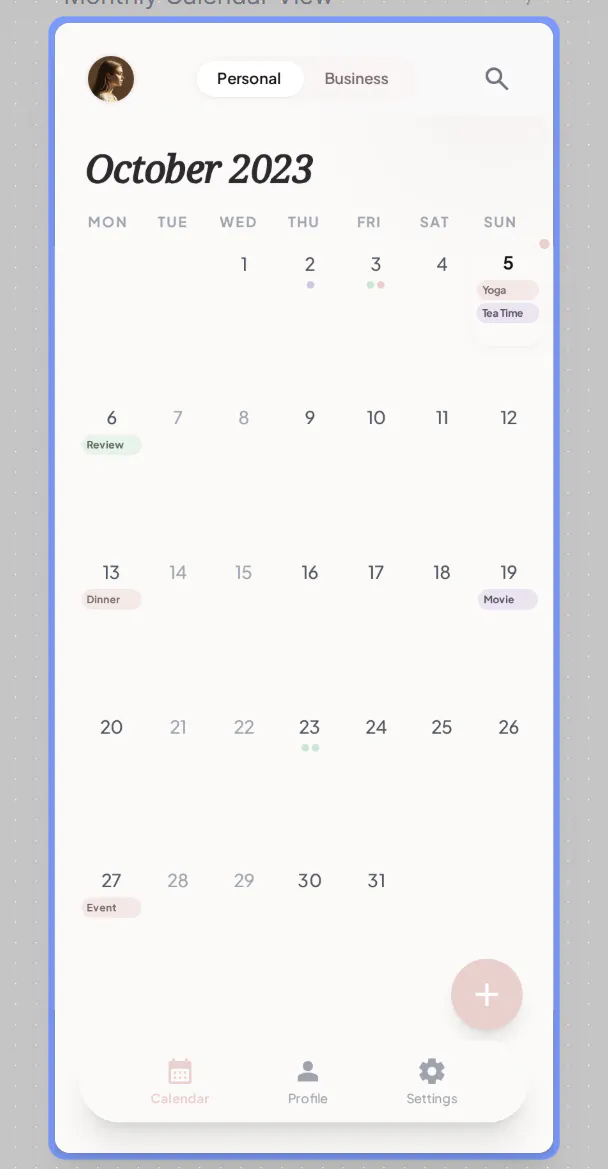
iPad의 캘린더 앱 스크린샷
그리고 AI Studio로 export 했습니다.
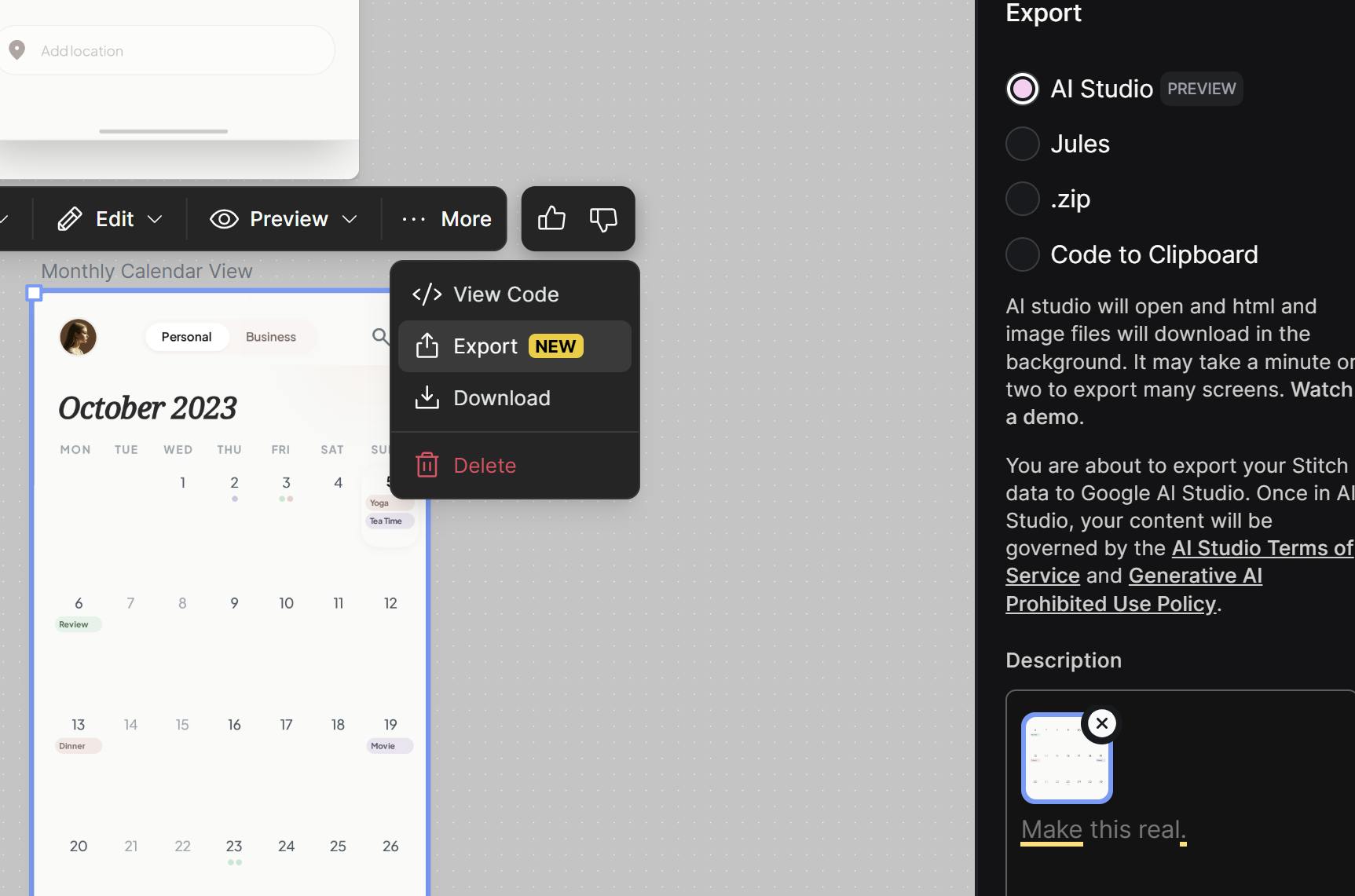
아이패드의 달력 스크린샷
앱을 만들었으나, 반응형이 아니어서 큰 화면에서 작게 보이길래 프롬프트를 한 번 더 썼습니다.
화면을 반응형 웹으로 만들어 줘. 나머지는 모두 그대로 두고.이렇게 잘 만들어졌네요.
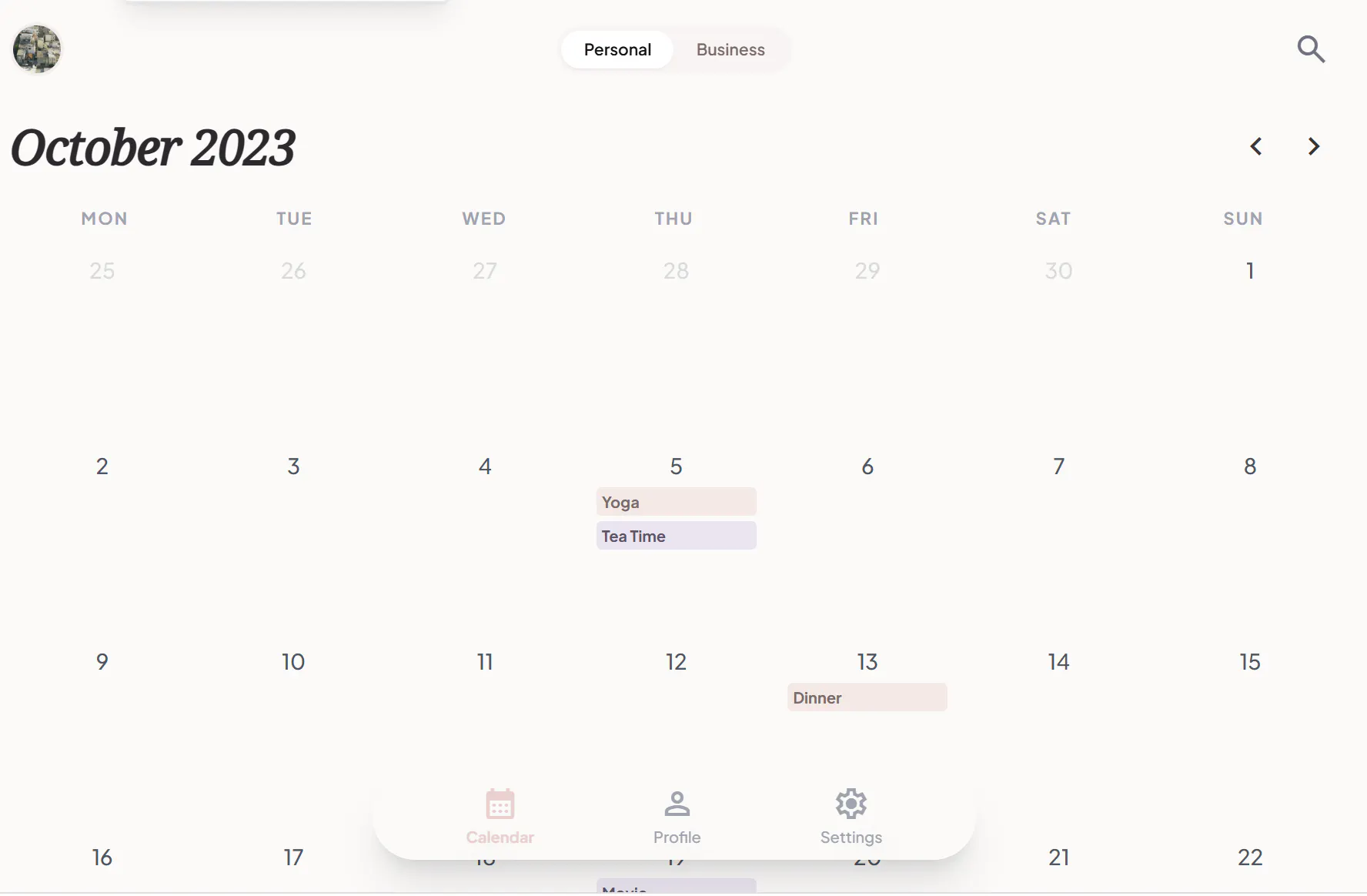
달력이 전화기 화면에 표시됩니다
이것을 github 와 연동한 후, git clone 해옵니다. github 로그인이 안 되어 있어서 gh로 로그인부터 해야 했네요.
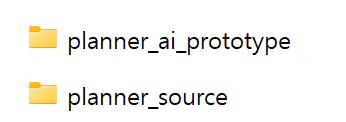
planner ai 프로토타입 및 planner ai 소스라는 단어가 포함된 두 개의 폴더
git clone 한 것은 planner_ai_prototype에 넣고 같은 폴더에 빈 소스코드 파일을 만듭니다.
그리고 두 폴더의 상위 폴더에서 claude code 실행~!
@planner_ai_prototype\ 폴더의 디자인을 사용해서 @planner_source\ 폴더에 React Native Android app을 구현해 줘.역시 plan 모드를 썼습니다. 명료하지 않은 부분에 대한 결정은 이렇게 했습니다.
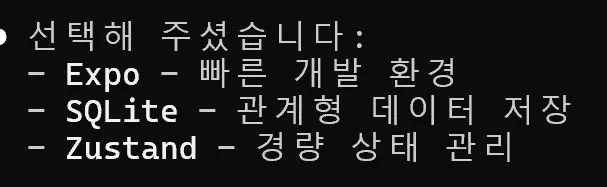
검정색 배경에 한국어가 적혀 있어요
여기서 Expo Orbit을 설치하고
https://expo.dev/go?sdkVersion=54&platform=android&device=true
여기서 Expo Go 앱을 설치했습니다.
실행해보니 구현이 다 안되어 있어서 조금 수정했네요.
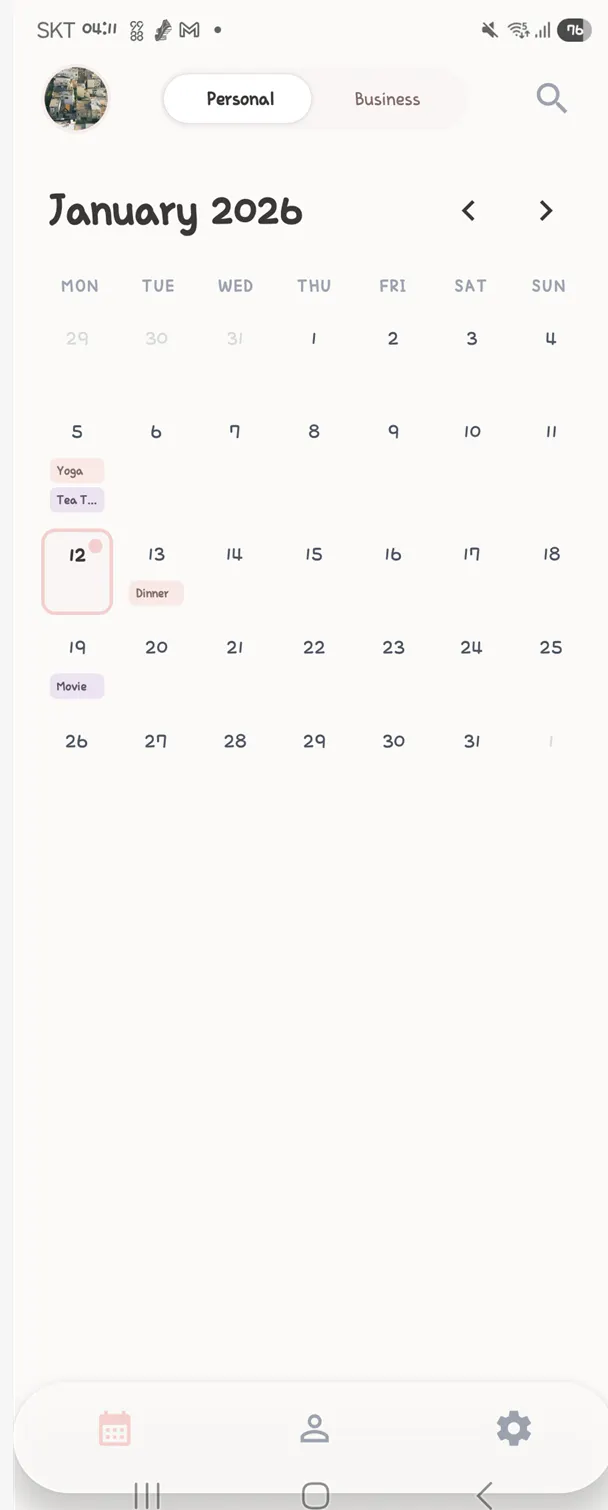
iPad의 캘린더 앱 스크린샷
이런 플래너 앱이 만들어졌습니다.
캘린더 화면이 아래까지 꽉 차게 수정만 하면 되겠습니다.
실행은 소스 폴더에서 아래 명령어 하나면 됩니다
npx expo start --android그러면 이런 QR 코드가 나옵니다.
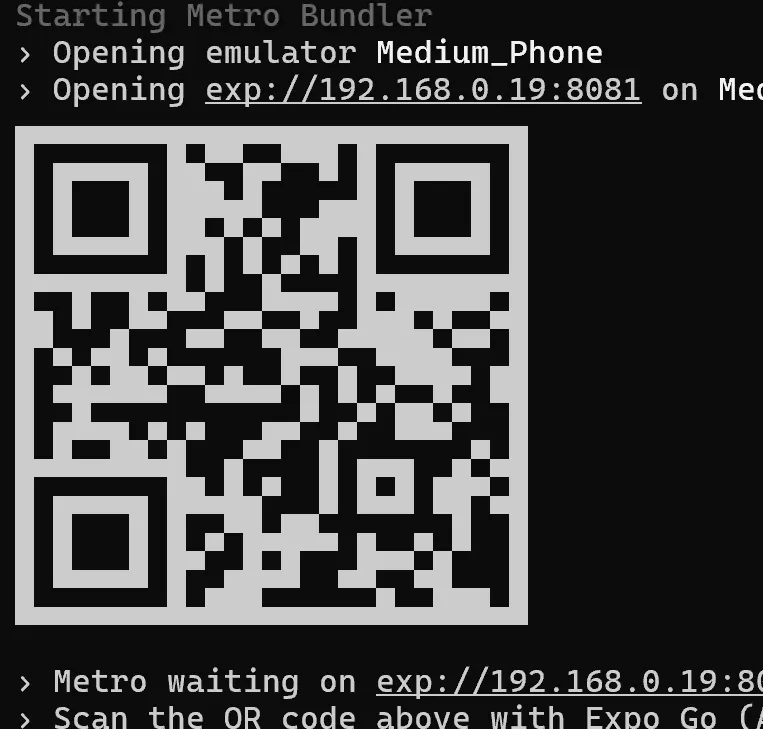
이 QR 코드만 휴대폰에서 스캔하면 바로 앱을 실행해볼 수 있습니다.
Flutter나 React Native 단독으로 쓸 때보다 초스피드로 실행됩니다.
이래서 RN + Expo가 가장 쉬운 접근법입니다~!!!
결과와 배운 점
이제 화면을 수정하고, 추가 기능 개발 및 오류 수정하면 쓸 수 있겠습니다.
